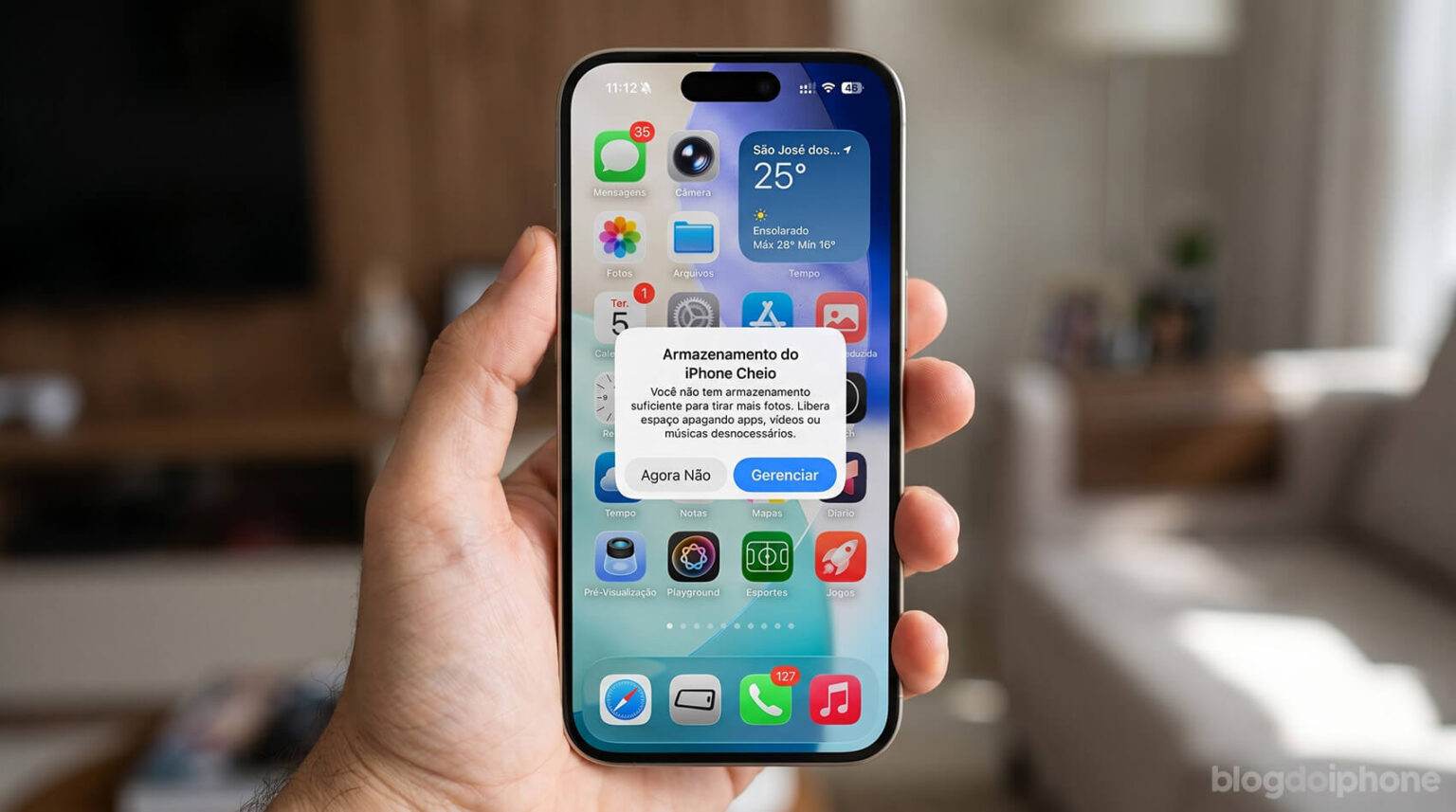
Nothing is more frustrating than picking up your iPhone to do something simple and being greeted by a storage full warning. Sometimes it happens right when you’re about to take an important photo or update an essential app.
The most common reaction is to start deleting anything and everything just to fix the problem quickly. Unfortunately, that often leads to regret later.
The good news is that you can free up space on your iPhone methodically, without giving up what really matters. The secret isn’t deleting more, it’s deleting smarter.
And we’ll show you a free app (with no ads) that can make a huge difference.
Why storage fills up so quickly
Many people assume the problem is excessive usage, but that’s not always the case.
The way we use iPhones has changed over the years. Cameras have improved, files have become larger, and apps now save more content automatically.
High-quality photos, long videos, files received in conversations, and background downloads quietly pile up over time.
Before you know it, your storage is already full.
That’s why clearing iPhone storage isn’t something you should do impulsively. It’s better to understand what’s taking up the most space and start there.
Start by deleting photos and videos you no longer need
If you’ve never checked what takes up the most space on your iPhone, you can safely bet that photos and videos are at the top of the list.
And it makes sense. Today’s photos are captured in high resolution, videos are often recorded in 4K, and Live Photos take up more storage than many people realize.
Clever Cleaner addresses exactly this issue. It was designed to solve the biggest storage problem directly and efficiently.
Instead of spending hours reviewing photos one by one, the app intelligently analyzes your photo library.
It identifies duplicate images, similar photos, large videos, and even forgotten screenshots.
You can also manually decide which photos and videos to keep or remove. With the swipe feature, you can choose in seconds what stays and what goes to the trash.

What makes it even more appealing is its simplicity. It’s free, ad-free, and lets you clean up your storage with just a few taps.
In practice, it’s one of the fastest ways to free up iPhone storage without turning the process into a tedious chore.
Good to know
Clever Cleaner is developed by the same company behind the well-known Disk Drill, one of the leading data recovery solutions for Windows and Mac, with more than 15 years of experience in the market.

Forgotten apps also take up space
After photos, it’s worth taking a look at the apps installed on your iPhone.
Over time, it’s common to download apps out of curiosity and never use them again. Some of them continue taking up a significant amount of space even though they no longer serve any purpose.
Checking your iPhone storage settings makes this much easier to see. There, you’ll find exactly how much storage each app is using.
- Open the Settings app on your iPhone.
- Tap General.
- Open the iPhone Storage menu.
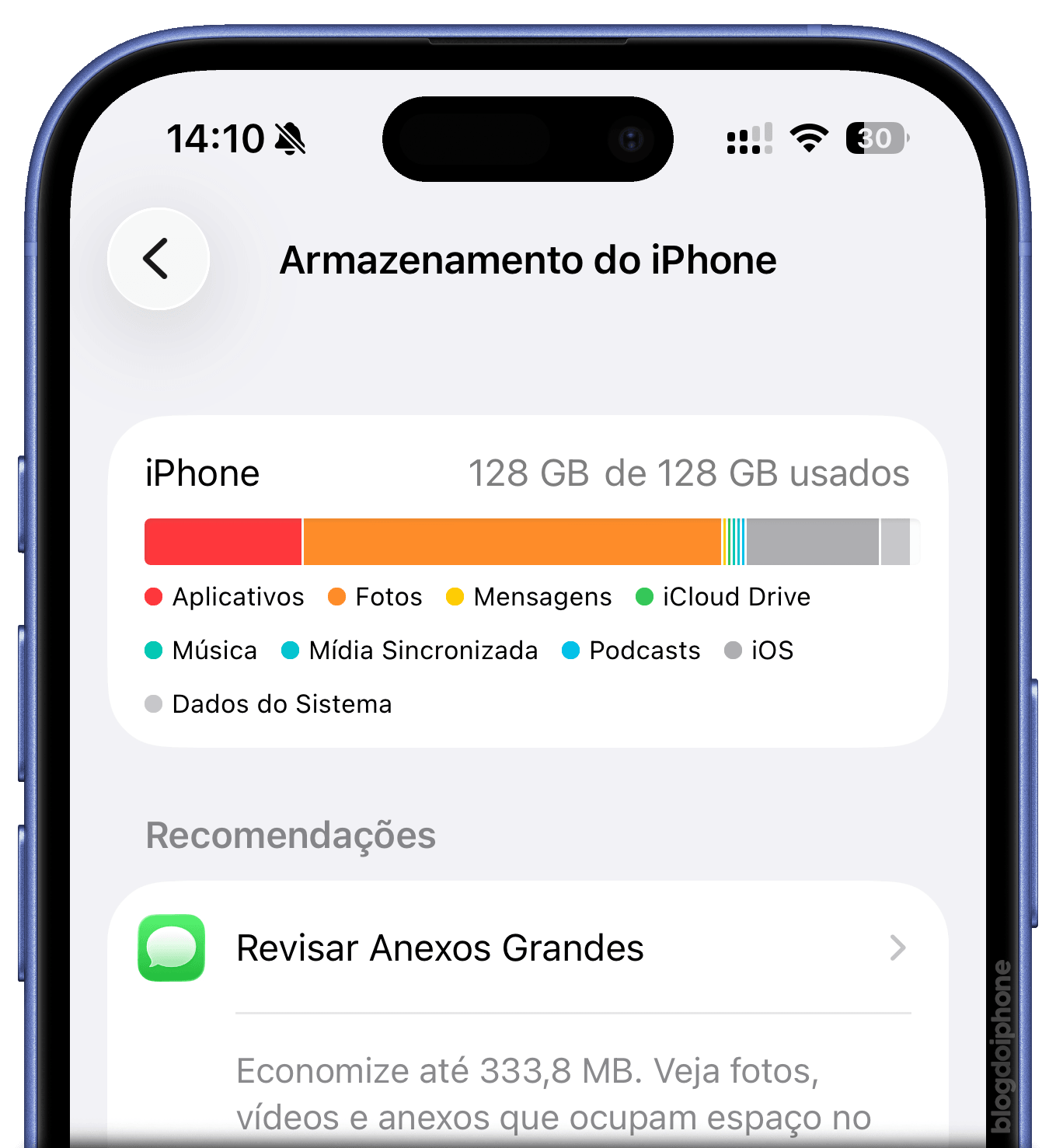
This is where you’ll see which items are consuming the most storage on your device. Scroll through the list and look for apps you no longer use. If you find one that you barely remember installing, that’s usually a sign that it isn’t useful to you anymore.
Very often, removing just two or three apps can already make a noticeable difference.
This step is simple, but extremely effective when it comes to optimizing iPhone storage.
Hidden data you don’t see
In the previous step, you may have noticed some frequently used apps consuming an enormous amount of storage. Many of them unnecessarily accumulate what’s known as cache, which keeps growing over the years without you realizing it.
Social media apps, web browsers, and streaming services store data in the background. This buildup grows over time and can take up a surprising amount of space.
Facebook and Instagram are among the biggest offenders.
To fix this, you can simply delete the apps from your iPhone and reinstall them. You’ll often recover a significant amount of storage without losing anything important, since most of the content is stored in the cloud.
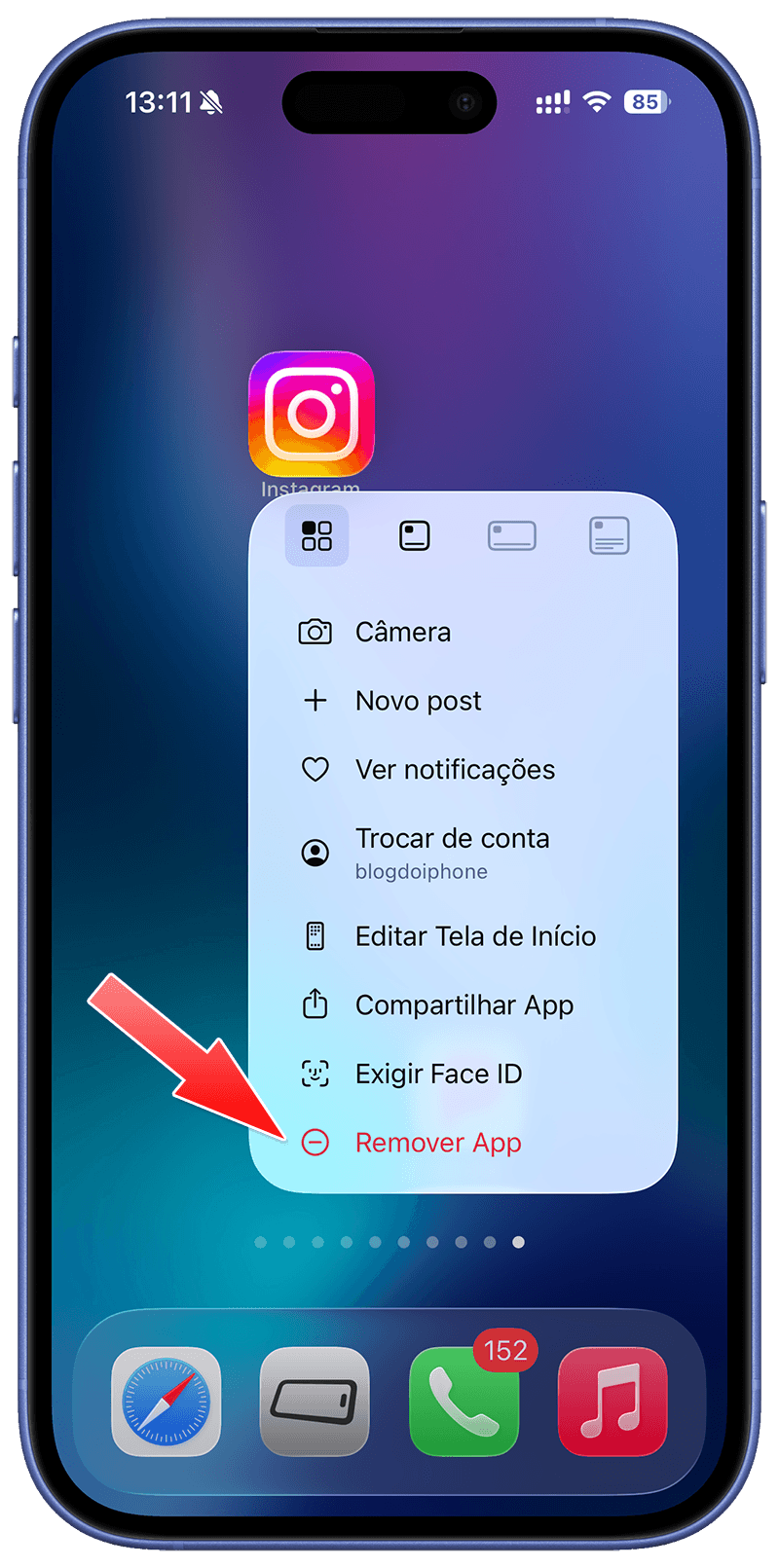
Apps that actually store files locally, such as PDF managers, image editors, document editors, or video editing apps, should be cleaned up before you remove them.
On WhatsApp, it’s also very common to accumulate large numbers of photos and videos sent by other people. That’s why it’s a good idea to do a cleanup from time to time. We even created a separate tutorial specifically for WhatsApp.
There’s another type of storage usage that isn’t as obvious.
Since iOS doesn’t provide a direct way to clear certain types of accumulated data, the most practical solution is often to remove and reinstall specific apps.
It may sound basic, but it works. And it can be a very effective way to clean up a full iPhone without touching important photos or documents.
Messages take up more space than you think
The Messages app can store far more content than most people realize.
Photos, videos, and audio messages exchanged over the years remain stored there without any automatic cleanup.
To see which conversations are using the most storage, follow the same path mentioned above: Settings > General > iPhone Storage, then find the Messages app.
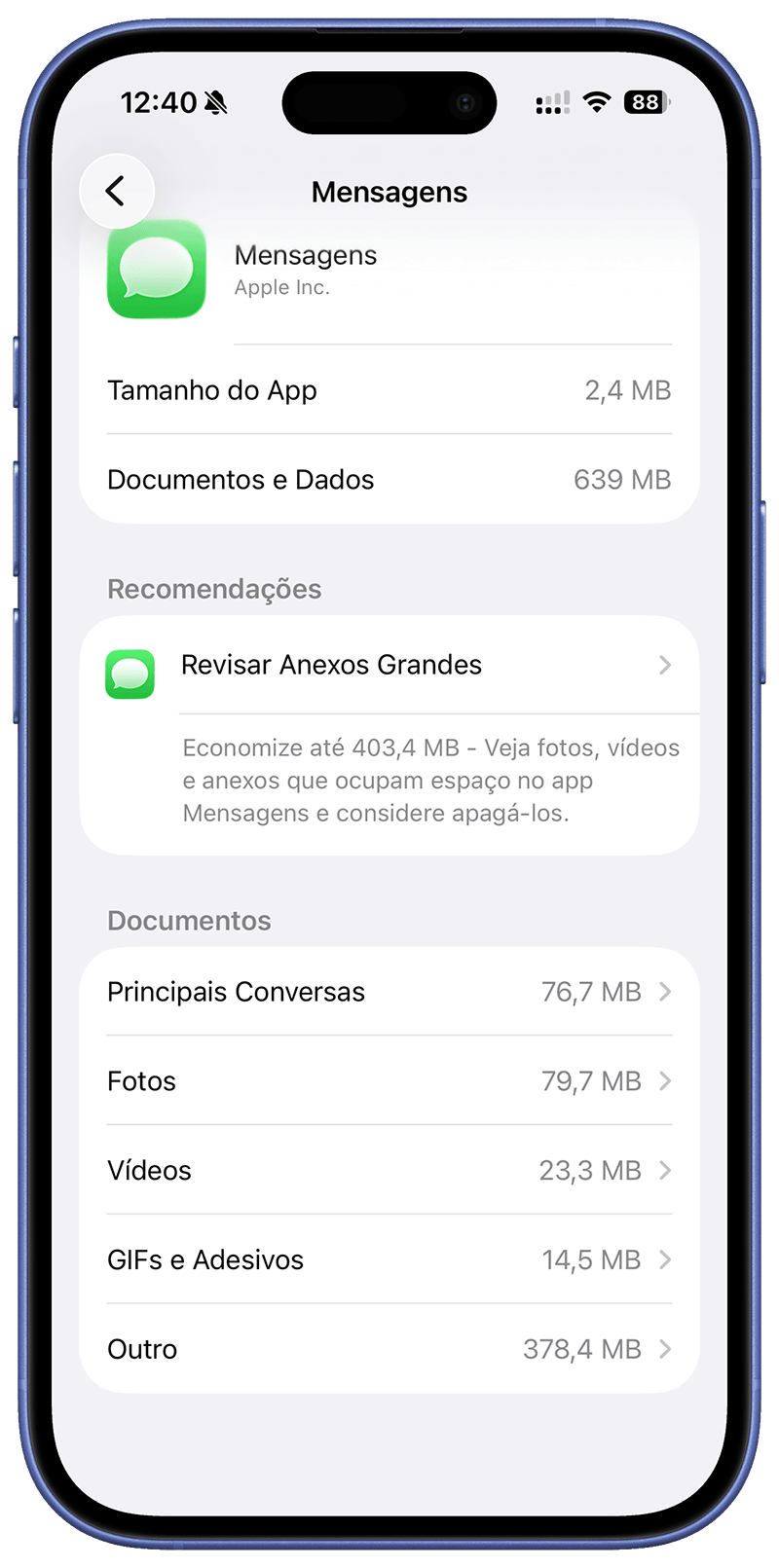
Adjusting message retention settings or reviewing older attachments can help free up a considerable amount of storage.
It’s not the first place you should look, but it can make a difference when your goal is to free up iPhone storage in a consistent and lasting way.
iCloud can help a lot
If you use iCloud, there’s one feature that’s definitely worth enabling: iCloud Photos.
The storage optimization feature keeps lightweight versions of your photos on the device while storing the full-resolution originals in the cloud.
This reduces the amount of space used on your iPhone without affecting your access to your photos.
If you haven’t enabled this feature yet, here’s how to do it:
- Open the Settings app on your iPhone;
- Tap the Apps menu near the bottom of the first page;
- Find and open Photos;
- Enable iCloud Photos.
After enabling the feature, make sure you also select Optimize iPhone Storage.
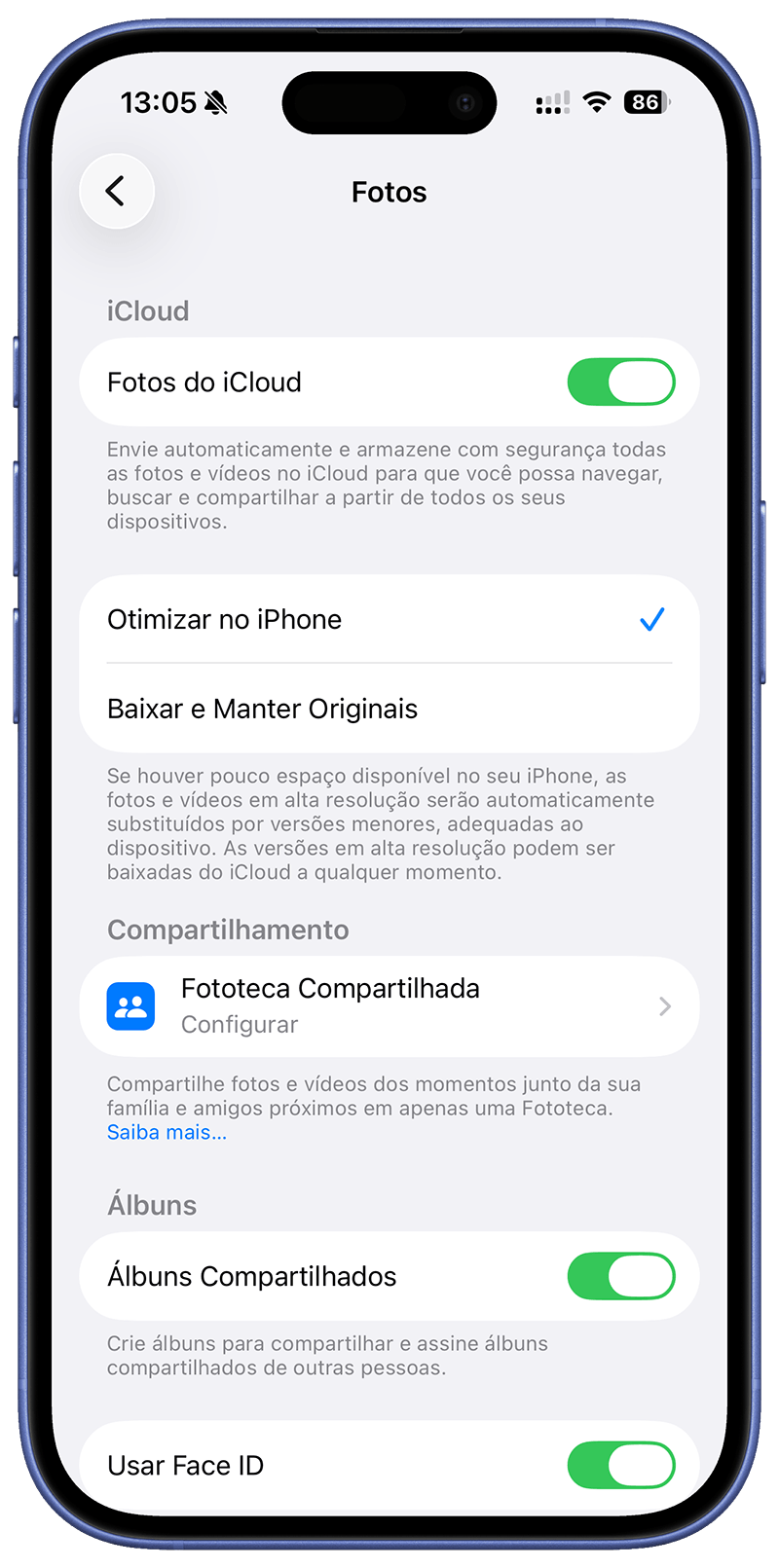
From that point on, your iPhone will begin uploading all your photos and videos to iCloud, keeping only smaller optimized versions on the device. This can reduce the amount of storage they use dramatically.
Of course, if you have a very large photo and video library, you’ll probably need to subscribe to one of the iCloud+ plans, since the free tier only includes 5GB of storage. However, the pricing is quite reasonable considering the storage benefits you receive.

What really works in everyday use
There is no magic solution. What actually works is combining several small actions.
Starting with your photos usually solves the biggest storage problem right away. After that, reviewing installed apps, clearing accumulated data, and adjusting a few settings can help prevent storage from filling up again so quickly.
It’s a simple process, but far more effective than randomly deleting files.
Deleting files at random may solve the issue temporarily, but the problem often returns quickly. What really works is understanding what’s consuming storage and tackling it strategically. Photos and videos first, then apps, then accumulated data.
By following this approach, you can clear your iPhone’s storage, recover valuable space, and keep everything that truly matters.
And best of all, you probably won’t have to deal with that dreaded storage warning again anytime soon. 😅